Pencil
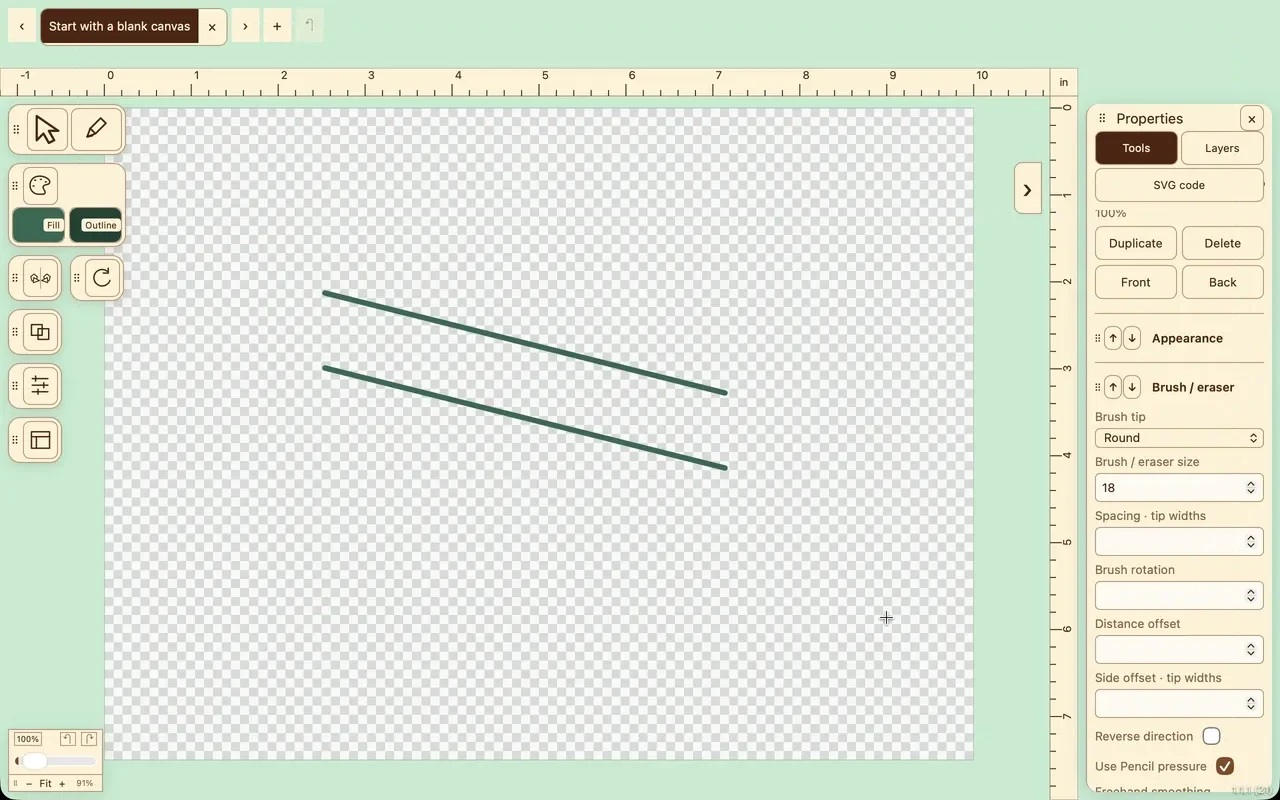
Draw freehand vector strokes, then keep editing their shape and appearance.
See the Pencil demonstration Squirrel VG
A Squirrel VG workflow
Draw editable shapes and refine the paths instead of starting over. A vector stores geometry, fill and outline information, so its shape can continue to change.
Choose a rectangle, ellipse or polygon, or make a freehand stroke. Set a visible fill or outline before drawing. On supported shape tools, Shift constrains the proportions.
Use Select for an object or a visible selection area. Use Lasso to gather artwork that crosses a freeform region. Move or transform the selection as a group when the composition needs to stay together.
Use the vertex controls to move anchors or adjust Bézier handles. Corner rounding changes the silhouette; smoothing helps simplify an uneven contour. Keep editing operations separate from the canvas view controls.
Save a working document and export the format you need. SVG keeps vector information, while PNG is a raster output. Inspect the chosen export settings before sharing.
Draw freehand vector strokes, then keep editing their shape and appearance.
See the Pencil demonstrationDraw a freeform selection crossing artwork. It returns to Select so you can move the result.
See the Lasso demonstrationDraw a rectangle from the shape family. Hold Shift for a square.
See the Rectangles demonstrationThis website is a development preview. App Store availability has not been announced. Features vary by device, and preview features still need release validation. Apple Pencil features require compatible hardware. The Watch companion requires the iPhone app.
Basic and Premium labels describe the planned edition split. Basic includes up to five layers, four gradient stops and one perspective vanishing point. The current development app exposes both editions for testing.