Nested groups
Group objects, then place groups within other groups and move them as a whole.
See the Nested groups demonstration Squirrel VG
A Squirrel VG workflow
Use layers to control the drawing order, groups to move related artwork together, and path operations when the geometry itself should change.
Name layers and groups for their purpose. Reorder a layer or item to change what appears in front. Lock or hide parts that should stay out of the current edit.
Unite combines the filled regions. Subtract removes overlapping coverage, Intersect retains shared coverage, and Exclude removes the overlapping region. Divide separates the resulting pieces.
A group preserves its individual items for later work. A permanent merge changes their combined geometry. Save an editable copy before a structural change you may want to revisit.
Check fill, outline, opacity and blending after an operation. Open paths, compound paths and painted strokes can have different geometry from closed filled shapes.
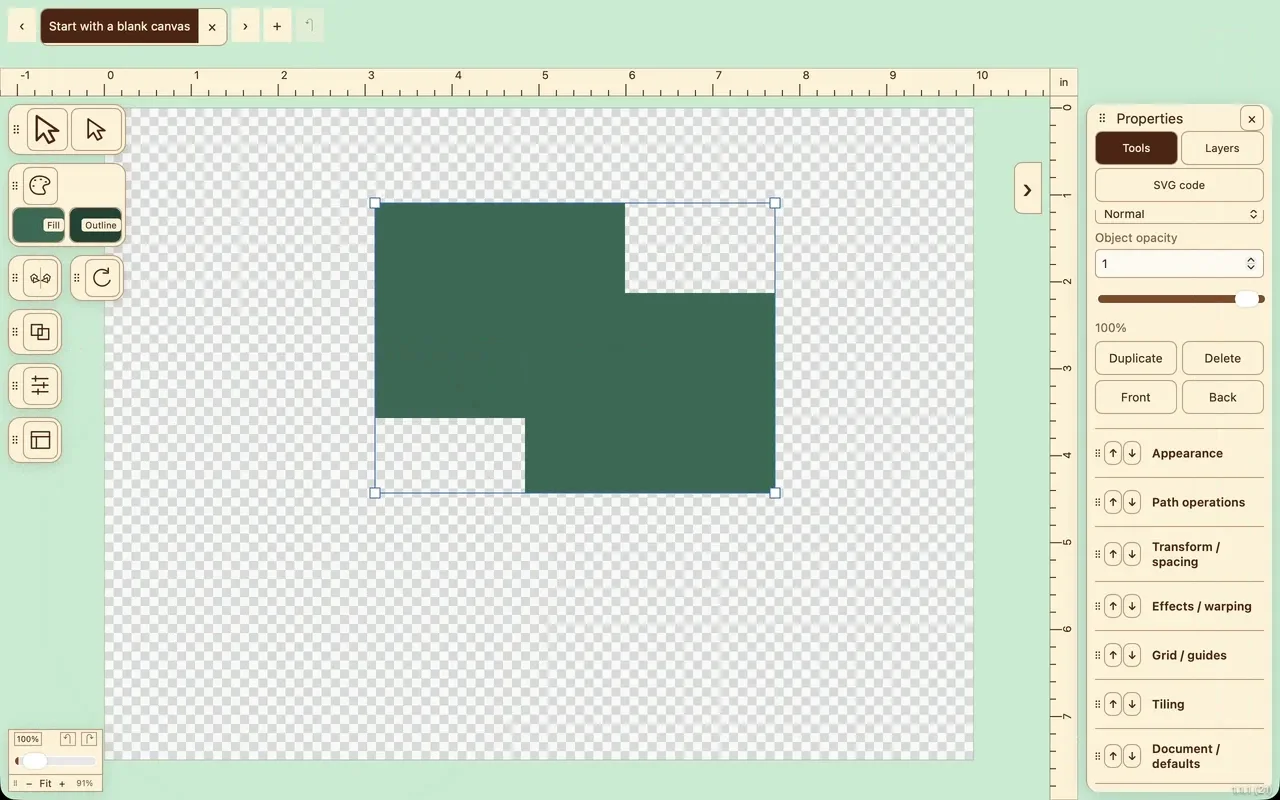
Group objects, then place groups within other groups and move them as a whole.
See the Nested groups demonstrationKeep the area where selected shapes overlap.
See the Intersect demonstrationSplit overlapping artwork into separate pieces along its intersections.
See the Divide demonstrationThis website is a development preview. App Store availability has not been announced. Features vary by device, and preview features still need release validation. Apple Pencil features require compatible hardware. The Watch companion requires the iPhone app.
Basic and Premium labels describe the planned edition split. Basic includes up to five layers, four gradient stops and one perspective vanishing point. The current development app exposes both editions for testing.