Standard linear/radial gradients with up to 4 color stops
Blend up to four colors along a line or from a center in Basic.
See the Standard linear/radial gradients with up to 4 color stops demonstration Squirrel VG
A Squirrel VG workflow
A color gradient changes hue across a shape. An opacity gradient changes how much of that shape is visible. Squirrel VG provides both so you can build color transitions and fades together.
Open the color control for the target paint. Fill colors the interior; outline colors the path edge. No fill and no outline remove the corresponding paint rather than covering it with white.
Choose colors at multiple positions and move the stops to change where each transition occurs. Basic is planned to include four color stops. More stops can refine a complex transition.
Adjust stop opacity independently from color. Use a linear direction for an angled fade, or the center burst controls for a fade that starts at or moves toward the center. Checkerboard areas indicate transparency.
Use a plain shape first so the fade is easy to read. The interactive sphere on the showcase is a website illustration; the feature clips show the native application controls.
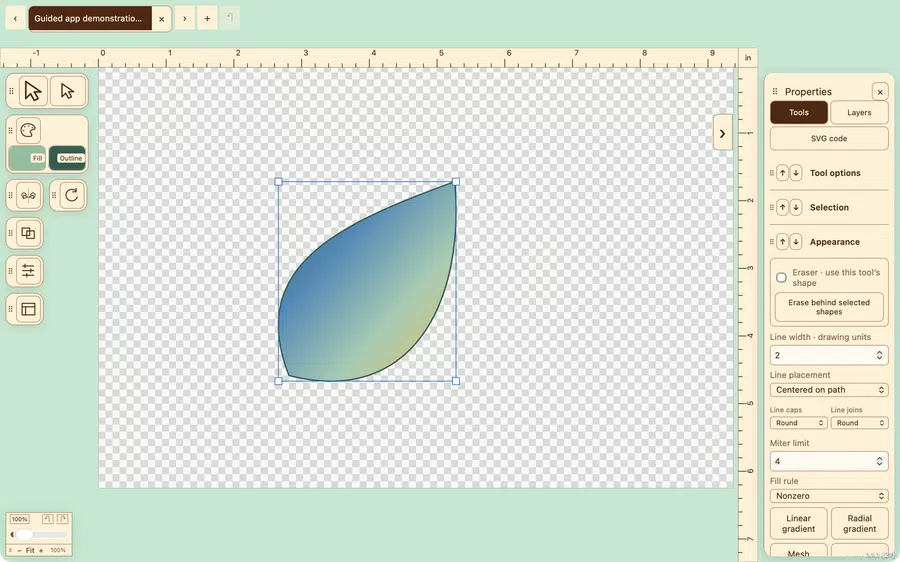
Blend up to four colors along a line or from a center in Basic.
See the Standard linear/radial gradients with up to 4 color stops demonstrationControl a shape’s fade independently of its color gradient, using movable controls.
See the Independent transparency gradients demonstrationChoose the first and last airbrush bands and graduate the bands in between.
See the Airbrush gradients demonstrationThis website is a development preview. App Store availability has not been announced. Features vary by device, and preview features still need release validation. Apple Pencil features require compatible hardware. The Watch companion requires the iPhone app.
Basic and Premium labels describe the planned edition split. Basic includes up to five layers, four gradient stops and one perspective vanishing point. The current development app exposes both editions for testing.