Text along paths
Attach lettering to a curve, shift its position along the path and adjust its spacing.
See the Text along paths demonstration Squirrel VG
A Squirrel VG workflow
Attach lettering to a curve or shape when the words should follow its outline. This differs from flowing a paragraph inside a shape or wrapping it around the shape.
Start with a text box and a readable size. Give the text its own fill and outline settings. The curve is a guide; its line thickness should not become the lettering style.
Select the text and the path or shape you want it to follow, then use the text-along-path control. A curve and a closed outline give different layouts.
Use the text path offset to move where the lettering starts. Adjust spacing along the path to spread or tighten the words, and inspect the result where the path bends sharply.
Retain editable lettering while you refine the words. Convert text to outlines when you need to work on the letters as vector shapes; keep a text copy if you may need to revise the wording.
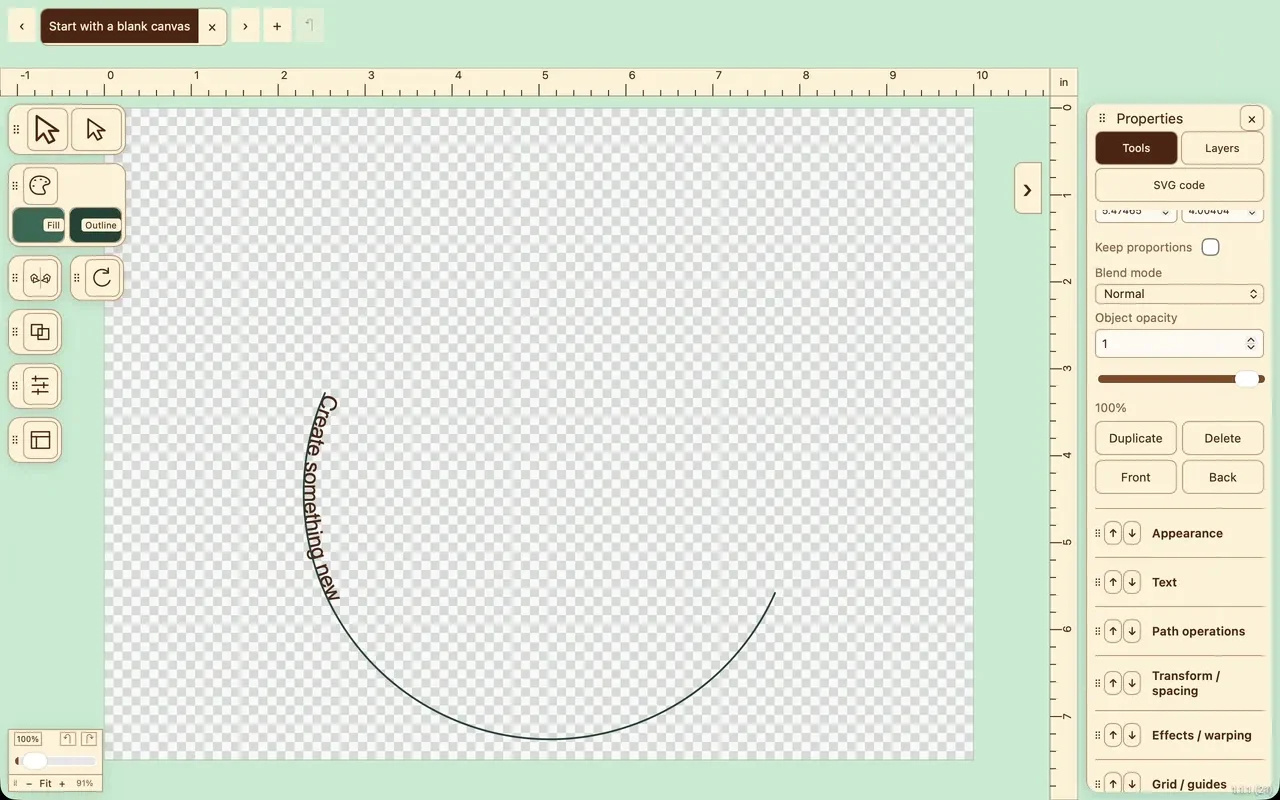
Attach lettering to a curve, shift its position along the path and adjust its spacing.
See the Text along paths demonstrationConvert lettering to vector contours for shape editing without relying on the font.
See the Text-to-outlines demonstrationThis website is a development preview. App Store availability has not been announced. Features vary by device, and preview features still need release validation. Apple Pencil features require compatible hardware. The Watch companion requires the iPhone app.
Basic and Premium labels describe the planned edition split. Basic includes up to five layers, four gradient stops and one perspective vanishing point. The current development app exposes both editions for testing.