Draw a leaf.
Start with a simple curved outline. A few points are all you need to make a shape.
 Squirrel VG
A little squirrel. A lot of possibility.
Draw and edit scalable vector graphics (SVG) on Mac, iPad and iPhone, with a doodling companion for Apple Watch. From a passing sketch to a carefully crafted illustration, make room for your next idea.
Find your flowMade for Mac, iPad, iPhone & Apple Watch.
The canvas comes first
Tools open when you need them. Floating controls go where you put them. Properties slide aside. Your drawing gets the space it deserves.
One little leaf. Your own way to draw.
Start with a simple curved outline. A few points are all you need to make a shape.
Move the curve handles to give the leaf a softer sweep or a sharper tip.
Bring the outline to life with fresh greens, a little golden light, and a smooth gradient.
Choose Refine leaf, then drag either round handle or use Up / Down. This website study reshapes the leaf’s outline.
Squirrel VG for Mac
The full vector workspace, with precise mouse input, customizable shortcuts and familiar system menus.
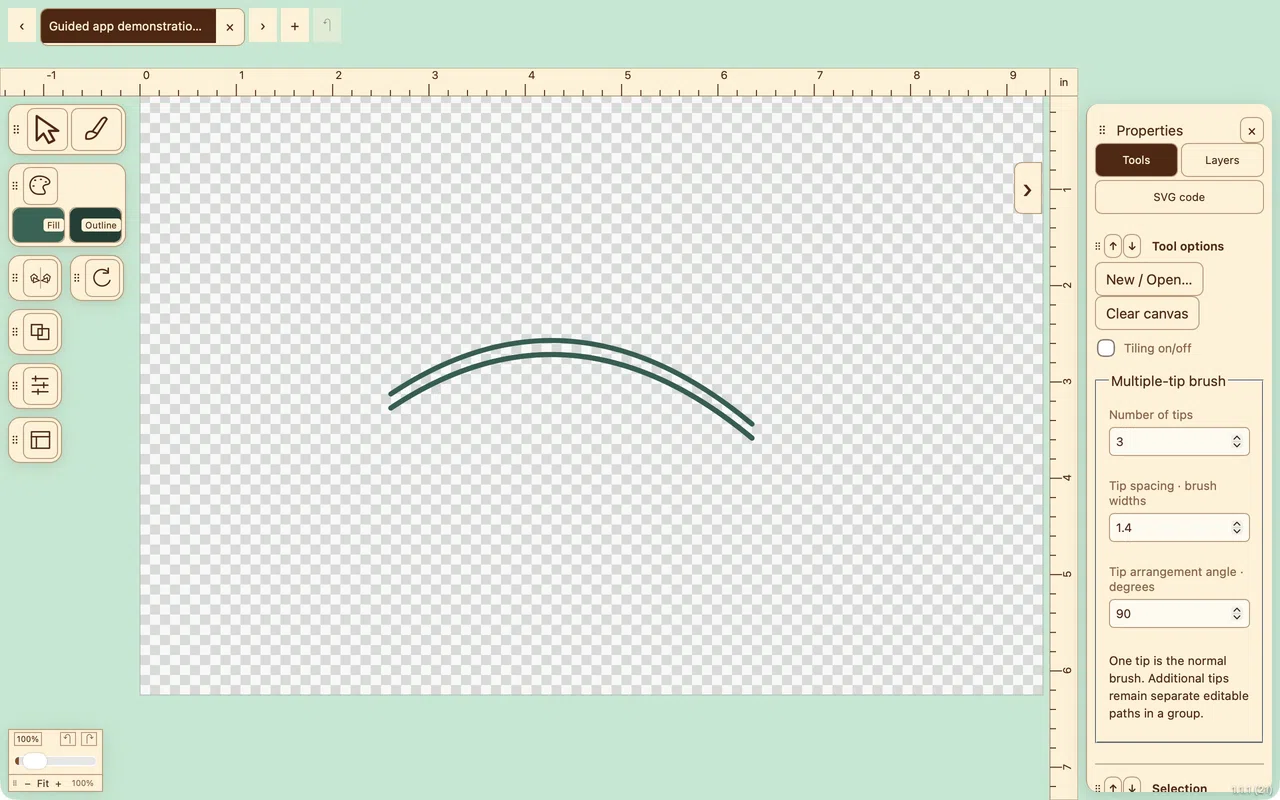
Refine curve anchors, round corners or adjust several selected shapes together with modifier keys.
Drag radial menus, arrange Properties and keep zoom-aware rulers clear of your tools.
Inspect SVG source, follow selected objects in the code and edit paths from either side.
Squirrel VG for iPad
Room to draw, touch to explore, and Apple Pencil controls on compatible iPads. The full editor also works with touch.
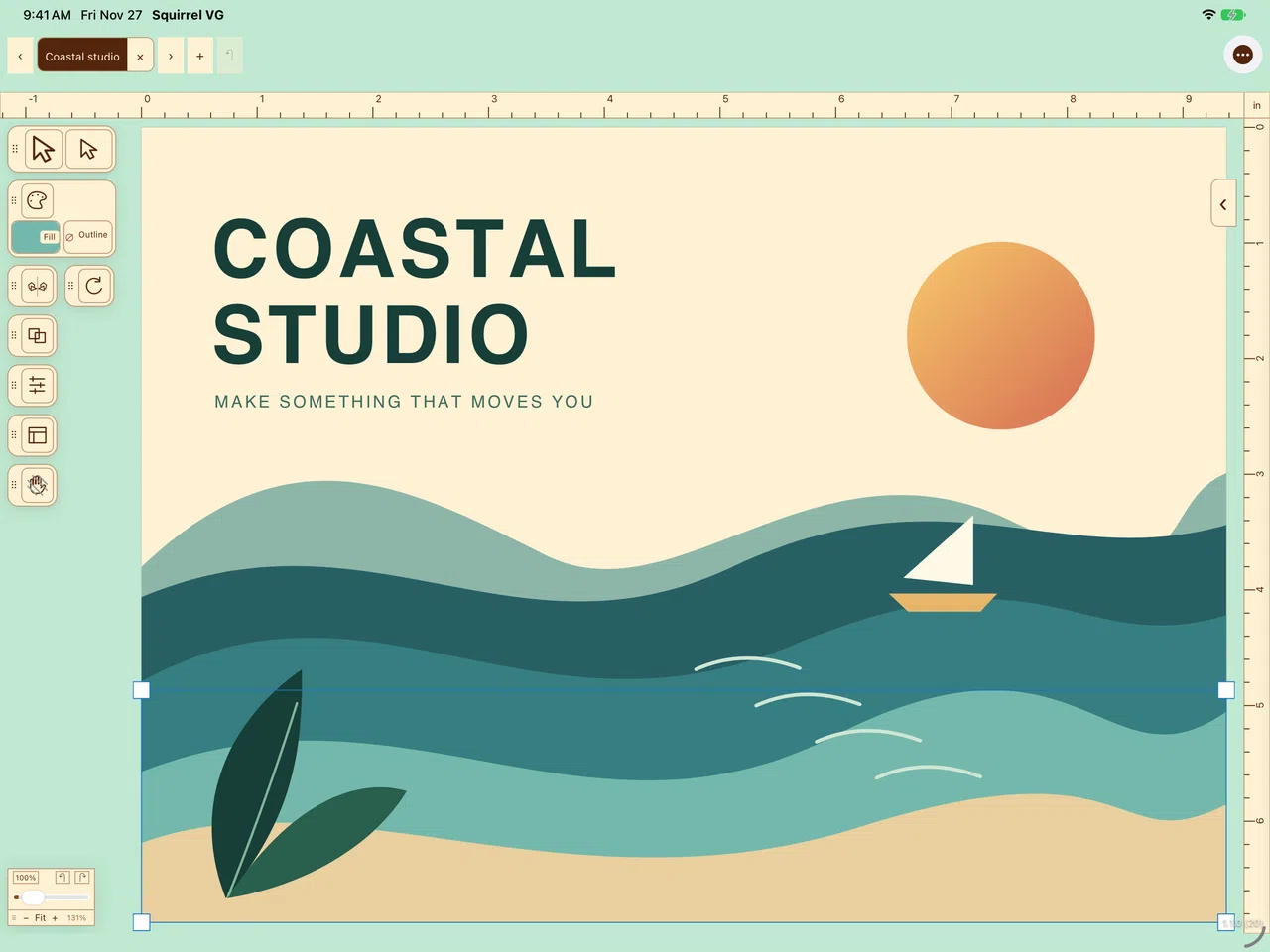
Draw a freehand contour, adjust its smoothing and use brush-tip hover feedback where the hardware supports it.
Move a touch-rejection area with Pencil and choose from three sizes. Pencil input continues through the guard.
Slide Properties aside, organize layers in their own tab and inspect SVG without leaving the drawing.
Apple Pencil pressure and hover depend on the Pencil and iPad model. The app currently uses a landscape workspace.
Explore every iPad featureColor with a little more depth
Explore precise color values, saved palettes and movable gradient stops. Try colors and transparency on the interactive sphere.
Drag a square stop or use Left / Right. Color and opacity affect the sphere; transparent areas reveal the checkerboard.
Squirrel VG for iPhone
Bring the vector editor along. Landscape gives the canvas room, and movable controls keep the essentials close.
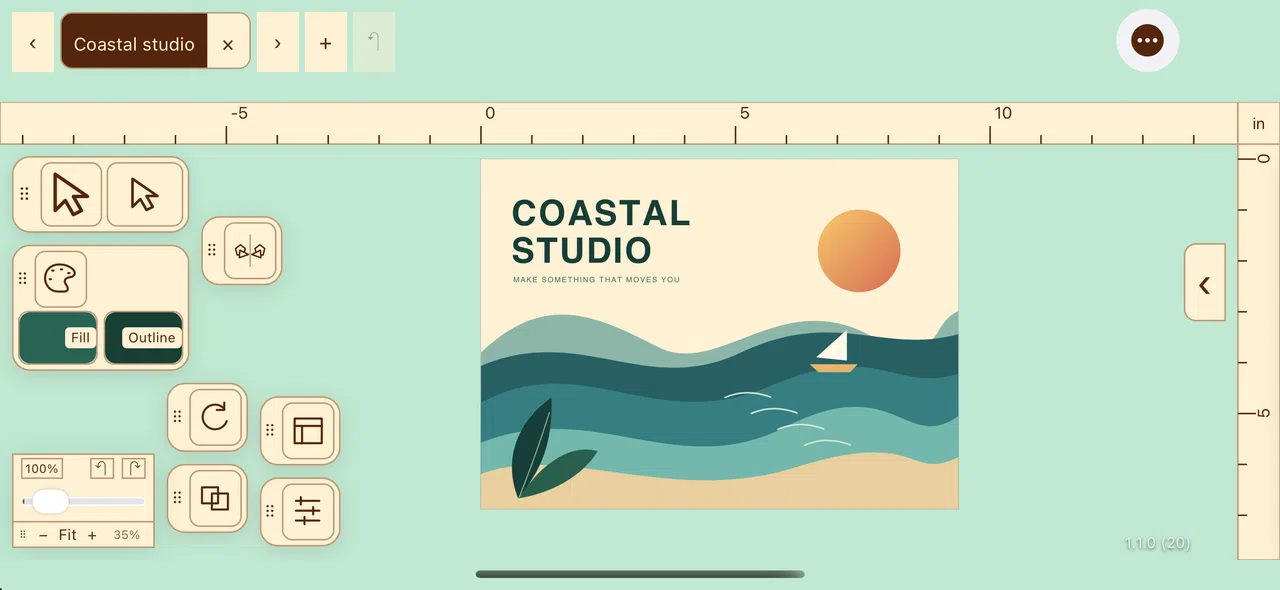
Draw, edit vertices, apply gradients, organize layers and work across document tabs.
Mirror, copy, paste and rotate through movable quick menus. Open fill or outline directly from the palette dock.
Receive doodles from the paired Watch, then continue editing in the iPhone app.
Live SVG source is reserved for Mac and iPad. The expanded-display image is a development simulator preview.
Explore every iPhone featureSquirrel VG for Apple Watch
Sketch a little flower on your wrist, choose a color, and send that starting idea to your paired iPhone.
Watch is part of the iPhone app, not a standalone vector editor. Watch doodling is planned for Premium.
Explore every Watch feature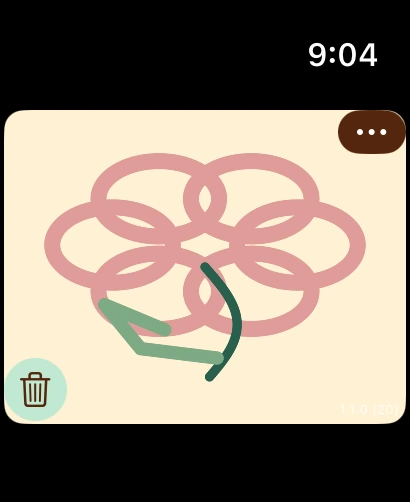
Let a little idea repeat
Turn a flower into a repeat. Adjust the tile in context, or keep repeated artwork as individual editable objects.
Explore patterns and tiling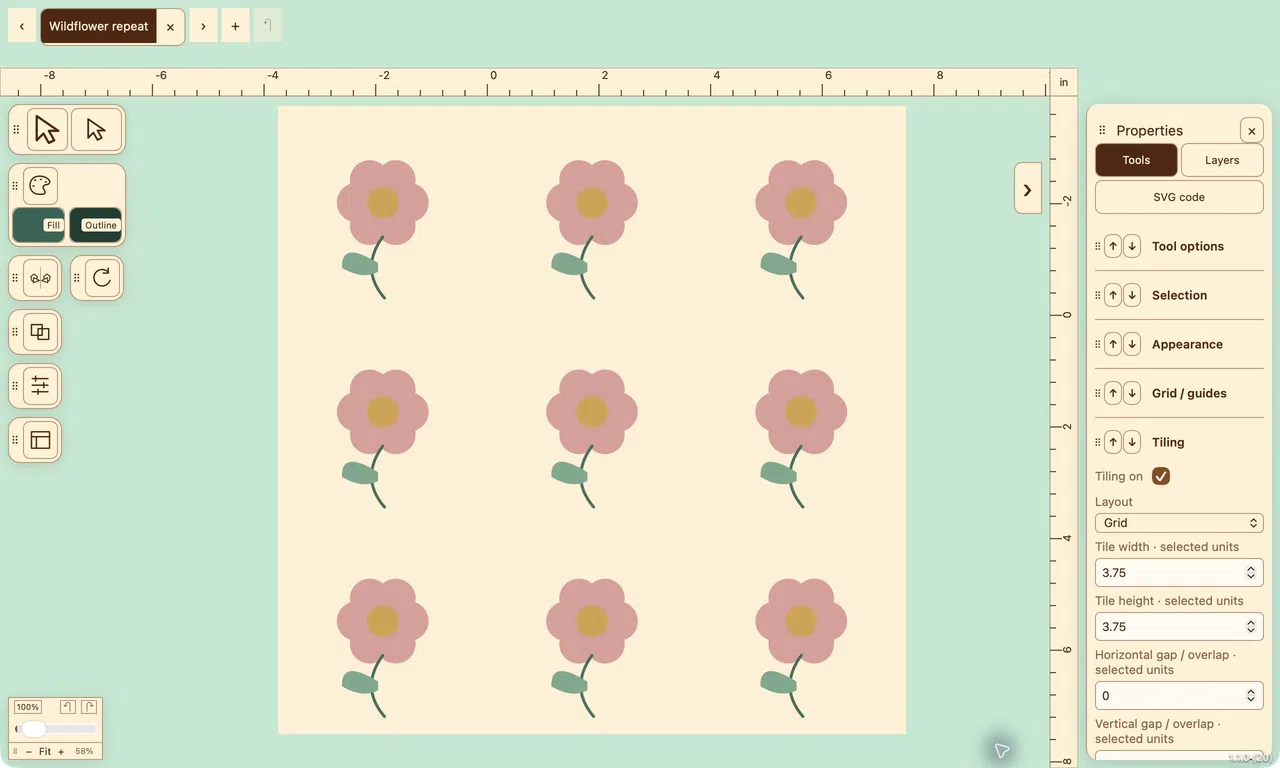
Get to know your tools
Choose a device and expand a feature to watch its tool in action. Clean-canvas demonstrations appear beside the matching explanation, with separate choices for related tools.
Prefer a readable list? Browse all 194 features and their device support.
Basic / Premium reflects the planned feature split: Basic includes up to five layers, four gradient stops and one perspective vanishing point. Current development builds expose both editions for testing; this page does not sell or activate a subscription. Compatibility and hardware support vary by device. Features marked “Preview” still require release validation.
Make a little room
Your lines. Your colors. Your own way of making.
Back to the canvasRead the complete feature guide, compare the device workspaces, or learn a vector drawing workflow. These guides are readable without JavaScript.